

VS Code Shortcuts Cheat Sheet provides essential keyboard shortcuts for efficient coding in Visual Studio Code. This guide covers general commands, editing techniques, navigation tips, and debugging shortcuts to enhance productivity. Ideal for developers and programmers looking to streamline their workflow, this cheat sheet includes shortcuts for file management, integrated terminal usage, and rich language editing. Whether you’re a beginner or an experienced user, mastering these shortcuts will significantly improve your coding efficiency.

Key Points

  • Includes essential keyboard shortcuts for VS Code to boost productivity.
  • Covers shortcuts for file management, editing, and navigation.
  • Provides debugging shortcuts to simplify the coding process.
  • Ideal for developers looking to enhance their workflow efficiency.
ekta
47 pages
Language:English
Type:Study Guide
ekta
47 pages
Language:English
Type:Study Guide
52
/ 47
VS Code
Shortcut
CheatSheet
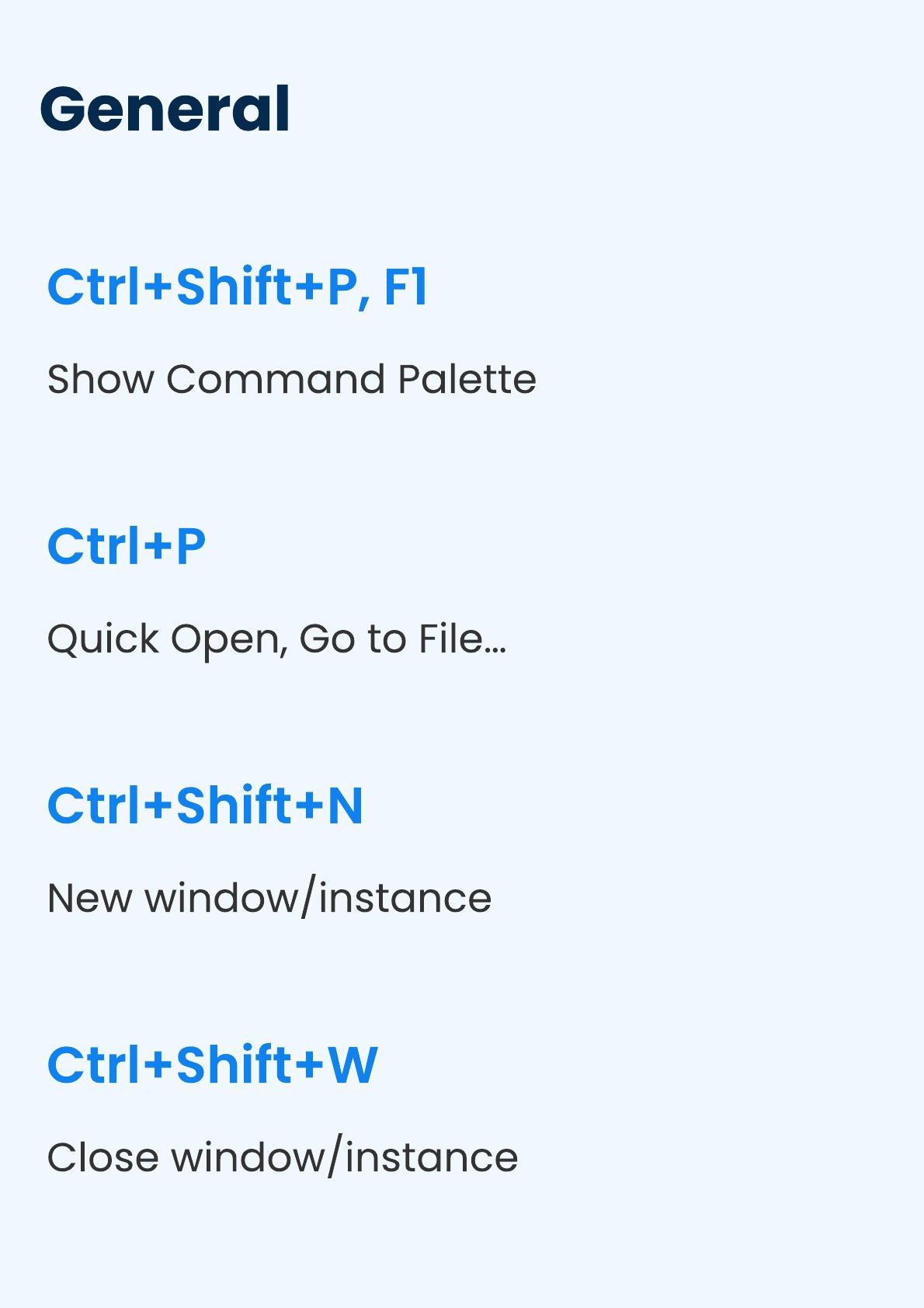
General
Ctrl+Shift+P, F1
Show Command Palette
Ctrl+Shift+N
New window/instance
Ctrl+Shift+W
Close window/instance
Ctrl+P
Quick Open, Go to File…
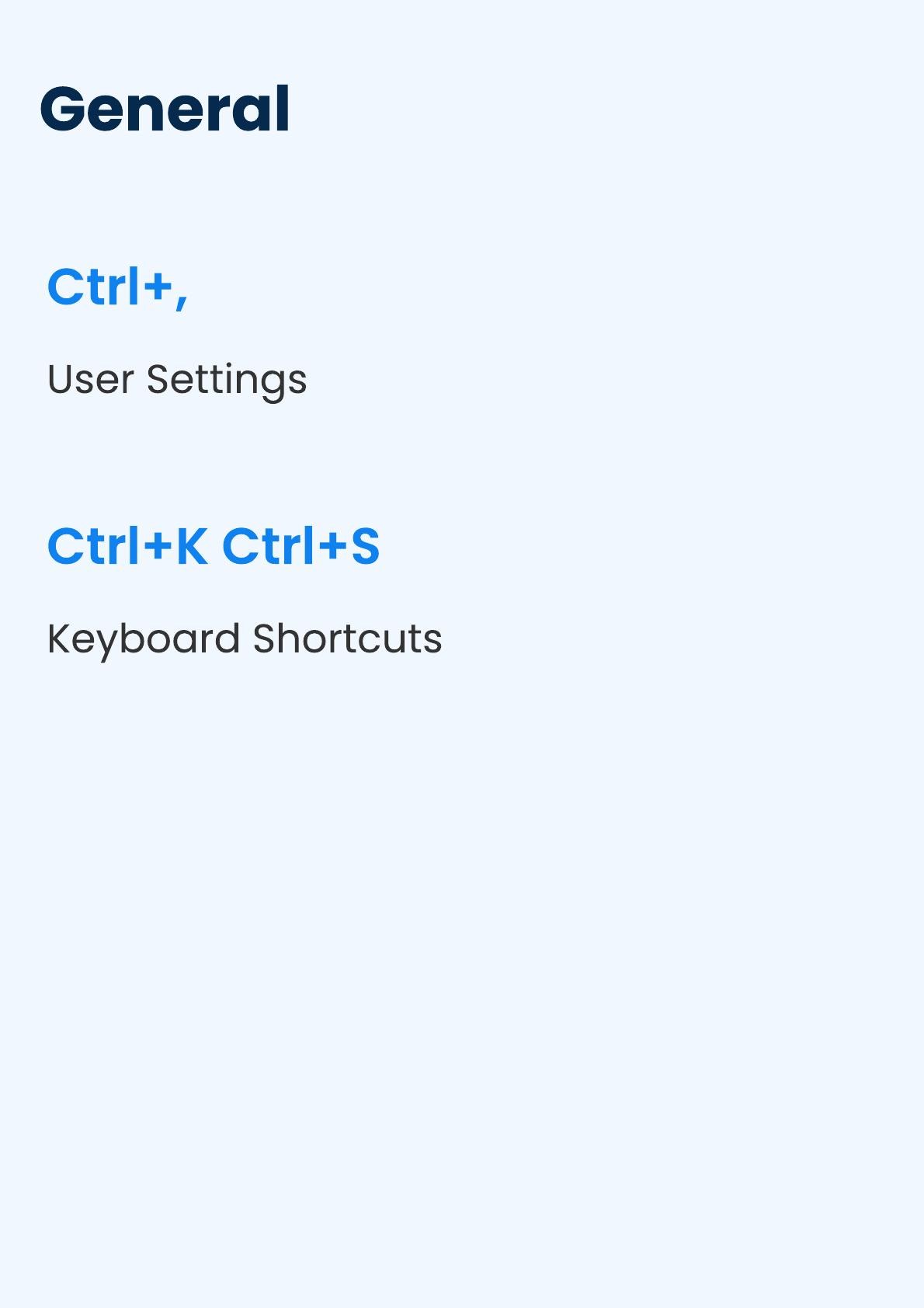
General
Ctrl+,
User Settings
Ctrl+K Ctrl+S
Keyboard Shortcuts
/ 47
End of Document
52

FAQs

what are the best VS Code shortcuts for efficient coding

The VS Code Shortcuts Cheat Sheet for Efficient Coding provides a comprehensive list of keyboard shortcuts that enhance productivity.

  • Command Palette: Ctrl + Shift + P
  • New Window: Ctrl + Shift + N
  • Close Window: Ctrl + Shift + W
  • Quick Open: Ctrl + P
  • Show Problems Panel: Ctrl + Shift + M

how can I navigate files using VS Code shortcuts

The VS Code Shortcuts Cheat Sheet for Efficient Coding includes several shortcuts for efficient file navigation.

  • Go to File: Ctrl + P
  • Go to Line: Ctrl + G
  • Show All Symbols: Ctrl + T
  • Navigate Editor Group History: Ctrl + Shift + Tab
  • Reveal Active File in Explorer: Ctrl + K R

what are the basic editing shortcuts in VS Code

The VS Code Shortcuts Cheat Sheet for Efficient Coding outlines essential shortcuts for basic editing tasks.

  • Cut Line: Ctrl + X
  • Copy Line: Ctrl + C
  • Delete Line: Ctrl + Shift + K
  • Insert Line Above: Ctrl + Shift + Enter
  • Indent Line: Ctrl + ]

how do I use multi-cursor selection in VS Code

The VS Code Shortcuts Cheat Sheet for Efficient Coding provides shortcuts for utilizing multi-cursor and selection features.

  • Insert Cursor at End of Each Line: Shift + Alt + I
  • Select All Occurrences of Current Word: Ctrl + F2
  • Add Selection to Next Find Match: Ctrl + D
  • Expand Selection: Shift + Alt + →
  • Shrink Selection: Shift + Alt + ←

what shortcuts can I use for debugging in VS Code

The VS Code Shortcuts Cheat Sheet for Efficient Coding includes useful shortcuts for debugging your code.

  • Toggle Breakpoint: F9
  • Start/Continue Debugging: F5
  • Step Into: F11
  • Step Out: Shift + F11
  • Stop Debugging: Shift + F5

how can I format my code in VS Code using shortcuts

The VS Code Shortcuts Cheat Sheet for Efficient Coding provides shortcuts for formatting code easily.

  • Format Document: Shift + Alt + F
  • Format Selection: Ctrl + K Ctrl + F
  • Trigger Suggestions: Ctrl + Space
  • Trigger Parameter Hints: Ctrl + Shift + Space

what are some useful shortcuts for file management in VS Code

The VS Code Shortcuts Cheat Sheet for Efficient Coding lists essential shortcuts for managing files effectively.

  • New File: Ctrl + N
  • Save File: Ctrl + S
  • Open File: Ctrl + O
  • Close File: Ctrl + F4
  • Save All: Ctrl + K S

how do I toggle the integrated terminal in VS Code

The VS Code Shortcuts Cheat Sheet for Efficient Coding includes shortcuts for managing the integrated terminal.

  • Show Integrated Terminal: Ctrl + `
  • Create New Terminal: Ctrl + Shift + `
  • Scroll Up/Down: Ctrl + ↑ / ↓
  • Copy Selection: Ctrl + C
  • Paste into Active Terminal: Ctrl + V

what are the shortcuts for toggling the sidebar in VS Code

The VS Code Shortcuts Cheat Sheet for Efficient Coding provides shortcuts for managing the sidebar visibility.

  • Toggle Sidebar Visibility: Ctrl + B
  • Show Explorer: Ctrl + Shift + E
  • Show Source Control: Ctrl + Shift + G
  • Show Extensions: Ctrl + Shift + X